ClickUp Guest Access vs a Client Portal: Which One to Give Clients
You need to show a client how their project is going. ClickUp gives you 2 native options, guest access and public views, and there is a third route that sits outside ClickUp entirely. Picking between them comes down to 3 questions: what does the client see, what does it cost as you grow, and what can leak.
This guide compares ClickUp guest access against a dedicated client portal on each of those.
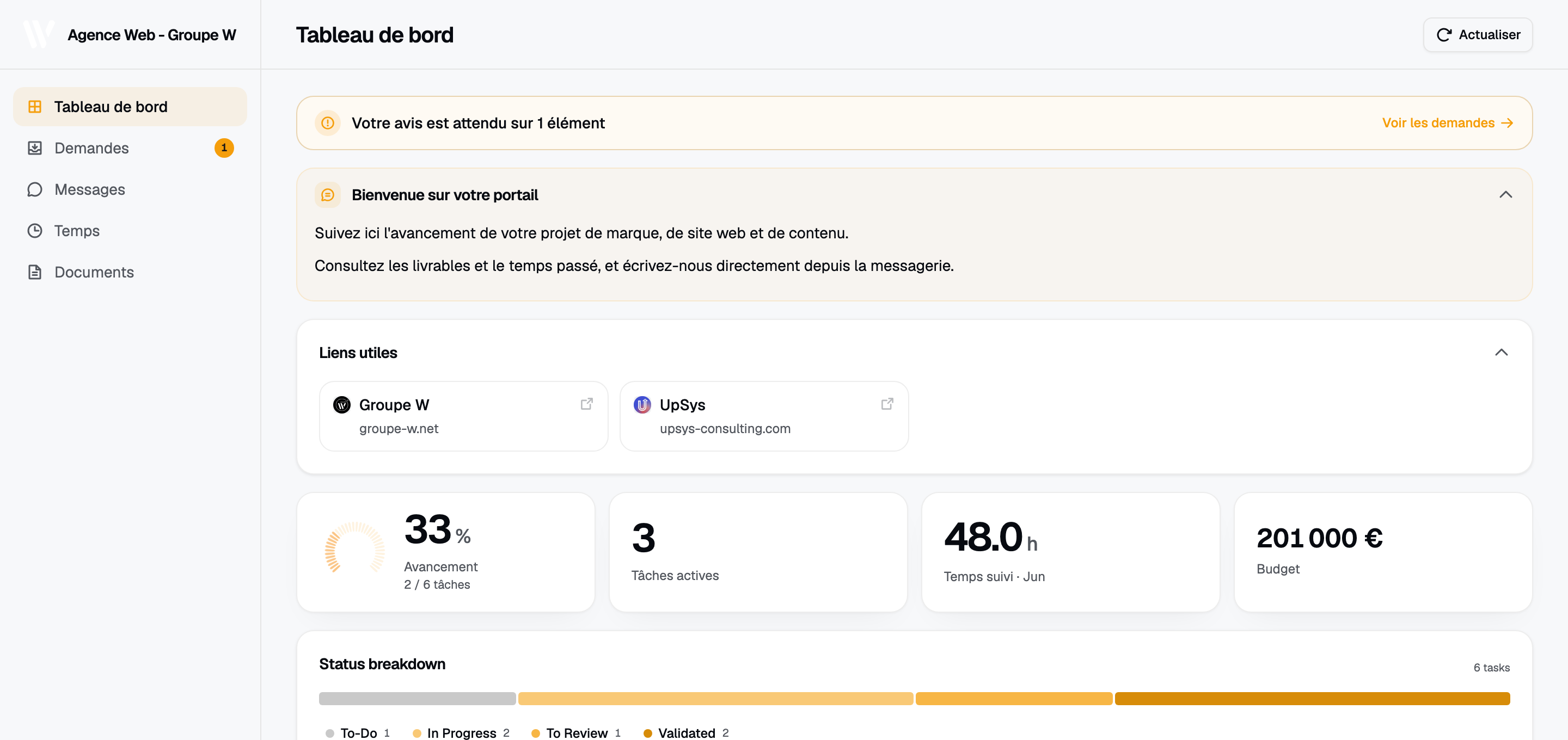
A portal built on a ClickUp workspace. The client sees progress and deliverables on a page carrying the agency’s branding.
ClickUp ships no named portal feature
Not as a named feature. When people ask this, they usually mean a page that is branded to the agency, protected by a password, and scoped so one client sees only their own work. ClickUp does not ship that.
What it ships instead:
- Guest access. Invite someone into the workspace with restricted permissions.
- Public views. Publish a view to a URL that anyone with the link can open.
- Shared docs. Publish a ClickUp Doc, with the same link-secrecy model as public views.
Each of these shows the work. None of them shows it as your agency rather than as ClickUp. That gap is why the portal category exists.
Each option on the client screen
This is the difference clients notice first, and it is not a small one.
With guest access, the client logs into ClickUp. They land in an interface designed for people managing work, with a sidebar, view tabs, task detail panes, and terminology from a tool they did not choose. Clients who use ClickUp themselves are fine. Clients who do not will ask you how to use it, which converts a status update into a support call.
With a public view, there is no login, but the page is still ClickUp’s layout with ClickUp’s chrome. Your branding is absent.
With a portal, the client opens a link, enters a password, and sees a page built for reading rather than for working: progress, deliverables, time if you choose to show it, and a place to ask a question. No sidebar, no task panes, nothing to learn.
The bill as you grow
Guest pricing is where this becomes a budget line.
Free guest slots exist but are limited and read-only, and the allowance varies by plan tier. The moment a client needs to comment, which is the main reason to invite them in the first place, you are generally into paid seat territory. Multiply by your active client count and the number grows in the wrong direction: every new client makes your project management bill larger.
A portal decouples the two. Your ClickUp seats cover the people doing the work, and client viewers are not seats at all. 10 clients or 50, the ClickUp side does not move.
Plugging the leak paths
This is the part worth taking seriously, because the failure mode is embarrassing rather than merely inconvenient.
ClickUp’s guest permissions are reasonable in themselves. The exposure is usually not a permission bug, it is context. When you share a task with a guest, you generally share its comment thread. Comment threads are where teams talk plainly: about scope creep, about the client’s indecision, about what something really cost. That is normal internal discussion, and it was never written to be read by the client.
The same applies to attachments on shared tasks, to task names written as shorthand for the team, and to time estimates a client may read as a quote.
A portal handles this by inverting the default. Rather than sharing a workspace object and then restricting it, you select which lists, statuses, and fields compose the client’s page. Anything outside that selection never reaches the browser, so an internal comment cannot surface by accident. For the wider category view, see our guide to client portal software for agencies.
Side by side
| Guest access | Public view | Client portal | |
|---|---|---|---|
| Client sees your branding | No | No | Yes |
| Password per client | No | No | Yes |
| Client needs an account | Yes | No | No |
| Cost scales with clients | Yes | No | No |
| Internal comments hidden | Depends on sharing | Depends on the view | Yes, by selection |
| Client has to learn a tool | Yes | Somewhat | No |
| Setup time | Minutes | Minutes | About a minute per client |
The cases for guest access
There are real cases where inviting a guest beats everything else, and it is worth naming them.
- The client is a collaborator. If they need to create tasks, assign work, or move things through a workflow, they need the actual tool. A portal is a reading surface.
- They already use ClickUp. No learning cost, and they may prefer it.
- 1 or 2 clients, low sensitivity. The cost of a better setup outweighs the benefit.
If the client’s job is to know what is happening rather than to do the work, the portal is the better fit.
Moving from guest access to a portal
If you already have clients as guests and want to change the arrangement, the migration is short:
- Connect ClickUp over OAuth. Read-only, so the portal can display work but never change it. The token is encrypted at rest with AES-256-GCM.
- Point a portal at the list or folder that holds one client’s project.
- Pick the cards the client should see and switch off the rest.
- Add branding and a password, then send the link.
- Remove the guest from ClickUp once the client confirms the portal covers what they needed.
Keep the guest active for a week alongside the portal. It costs one seat briefly and it avoids the awkward moment where a client loses access to the only view they had.
You can read how connections and per-portal scoping work in the help center, and follow what ships on the changelog.
Frequently asked questions
Does ClickUp have a client portal? Not as a distinct feature. Guest access and public views both show work through the ClickUp interface. A branded, password-protected page scoped to one client is built by connecting ClickUp to a portal tool.
What can a ClickUp guest see? The items shared with them plus the comments and attachments on those items, subject to the permission level. The usual risk is that comment threads on shared tasks contain internal discussion.
Do ClickUp guests cost money? Free guests are limited and read-only, and the allowance depends on your plan. Guests who need to comment or edit generally consume a paid seat, so cost grows with client count.
Is a public ClickUp view safe to send a client? It is reachable by anyone with the link, with no password step. That is a poor fit for work under NDA or anything a client would rather keep private.