Client Portal Software for Agencies: A 2026 Guide
If your agency still sends weekly status emails, keeps a shared spreadsheet of deliverables, or copies screenshots into Slack, client portal software is the upgrade that pays for itself. It gives every client a private page that shows exactly where their project stands, updated automatically, without handing them a login to your internal tools.
This guide covers what client portal software actually does, the features worth paying for, and how to create a client portal for your agency in a few minutes.
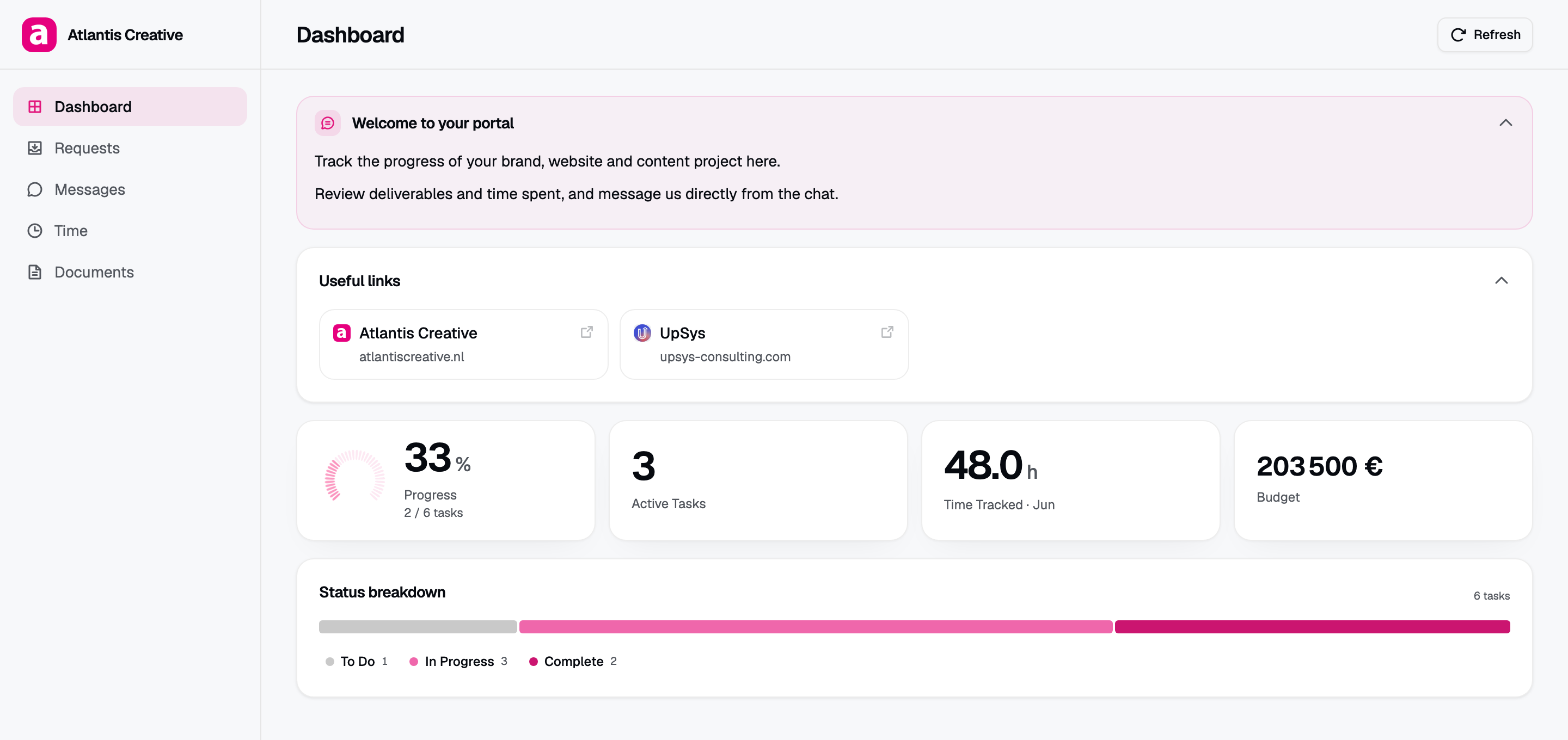
A real client portal built with Client Glance: progress, deliverables, time, and status in one branded view, with no access to the agency’s internal tools.
A private page per client
Client portal software is a tool that publishes a private, branded space for each client. Inside that space a client can see the things they care about: current status, what has shipped, what is in progress, time logged, and any files or notes you choose to share.
The key word is private. Clients see only their own work, behind a password or login, on a page that carries your agency’s name and colors rather than the name of whatever project tool you use behind the scenes.
For agencies, this matters for 2 reasons:
- Clients want visibility, not access. They want to know the project is moving. They do not want to learn your task tool, and you do not want them editing tasks or seeing other clients’ work.
- Status updates are expensive. Writing a recap email every Friday across 10 clients is hours of work that a live portal does for free.
The gap it closes
A client portal solves a specific problem: the gap between the work you do in a project tool and the picture your client has of that work.
Without a portal, that picture is whatever you last told them. With a portal, the picture is always current. A few concrete wins:
- Fewer “any update?” messages. When clients can check a link, they stop pinging you for status.
- One source of truth. The portal reads from your real project data, so what the client sees matches what your team is doing.
- A more premium impression. A clean, branded dashboard reads as more professional than a forwarded spreadsheet.
- Faster onboarding. New stakeholders on the client side get up to speed from one link instead of a thread of old emails.
If your agency runs projects in ClickUp, you can turn those workspaces into client dashboards directly. See how to create a ClickUp client portal for the step by step.
What to look for in client portal software
Not every tool that calls itself a client portal fits an agency. Here is a checklist for picking the best client portal software for your team.
1. It reads from your existing project tool
The portal should pull from where work already happens. If you have to copy tasks into a second system, the data will drift and the portal will go stale. Look for software that connects to your project tool and stays in sync.
2. Clients never touch your internal tool
Read-only, password-protected access is the point. Your client should open a link, not create an account in your task manager. This also keeps every other client’s data private.
3. White-label branding
Your agency’s name, logo, colors, and font. The vendor’s name appears nowhere. A white-label client portal reads as part of your service.
4. You control what each client sees
Some clients should see time tracking. Others should only see deliverables and status. Good client dashboard software lets you toggle cards per portal: status, deliverables, time, files, and messages.
5. Fast to set up
If spinning up a portal for a new client takes an afternoon, you will not do it. The best tools make a portal in under a minute so the habit sticks.
6. Secure by default
Your project data is sensitive. Look for encryption of any stored access tokens and read-only connections, so the portal can show work but never change it. For background on protecting access, the OWASP authentication guidance is a solid reference.
How to create a client portal in 60 seconds
Here is the process with Client Glance, which is built for agencies running on ClickUp:
- Connect ClickUp. Authorize a read-only connection through ClickUp’s OAuth screen. Your access token is encrypted with AES-256-GCM and used only to read.
- Pick the work. Choose the list or folder that holds a client’s project.
- Choose the cards. Turn on status tracking, deliverables, time tracking, and messages as needed for that client.
- Brand it. Set your logo, brand color, and font.
- Set a password and share. Add a password and send the link.
That is the whole flow. Because the work already lives in ClickUp, there is nothing to copy or maintain by hand. When a task moves in ClickUp, the portal reflects it.
Client portal vs sharing ClickUp access
A common shortcut is to add the client as a guest in your project tool. It works until it does not:
- Guests can see more than you intended, including internal comments and other lists.
- The interface is built for your team, so a client opens it and gets lost.
- Per-guest seats add up across a roster of clients.
- One wrong permission exposes data you meant to keep private.
A dedicated client portal flips this around. The client sees a page designed for them, with only the cards you chose, and never lands inside your workspace. You can read more about how access and privacy work in the help center.
Portal pricing, briefly
Pricing depends on how many portals you run and which features you need. Many tools charge per portal or per client seat once you pass a free tier.
Client Glance starts free for your first portal with no credit card, so you can publish a real client dashboard before paying anything. Paid plans add more portals and features as your roster grows. You can track what ships on the changelog.
Frequently asked questions
What is client portal software? It gives each client a private, branded space to see project status, deliverables, and updates without access to your internal tools. For agencies, it replaces status emails and shared spreadsheets with one live link per client.
How do I create a client portal? Connect your project management tool, pick the list or folder for a client, choose which cards to show, set your branding, add a password, and share the link.
Do clients need a ClickUp account? No. The portal reads from ClickUp and presents the work on its own page. Clients open a password-protected link and never sign in to ClickUp.
How much does it cost? From free plans to paid tiers that grow with portal count and features. Client Glance starts free for your first portal.