ClickUp Client Portal Template: What It Solves and Where It Stops
Search for a ClickUp client portal template and you will find plenty of them: dashboard layouts, client onboarding lists, project trackers built to be shared. They are useful inside your workspace. They are also not portals, and the difference matters once you try to hand one to a paying client.
This guide covers what a ClickUp client portal template gives you, the 3 walls you hit with one, and how agencies combine a template with a real portal layer.
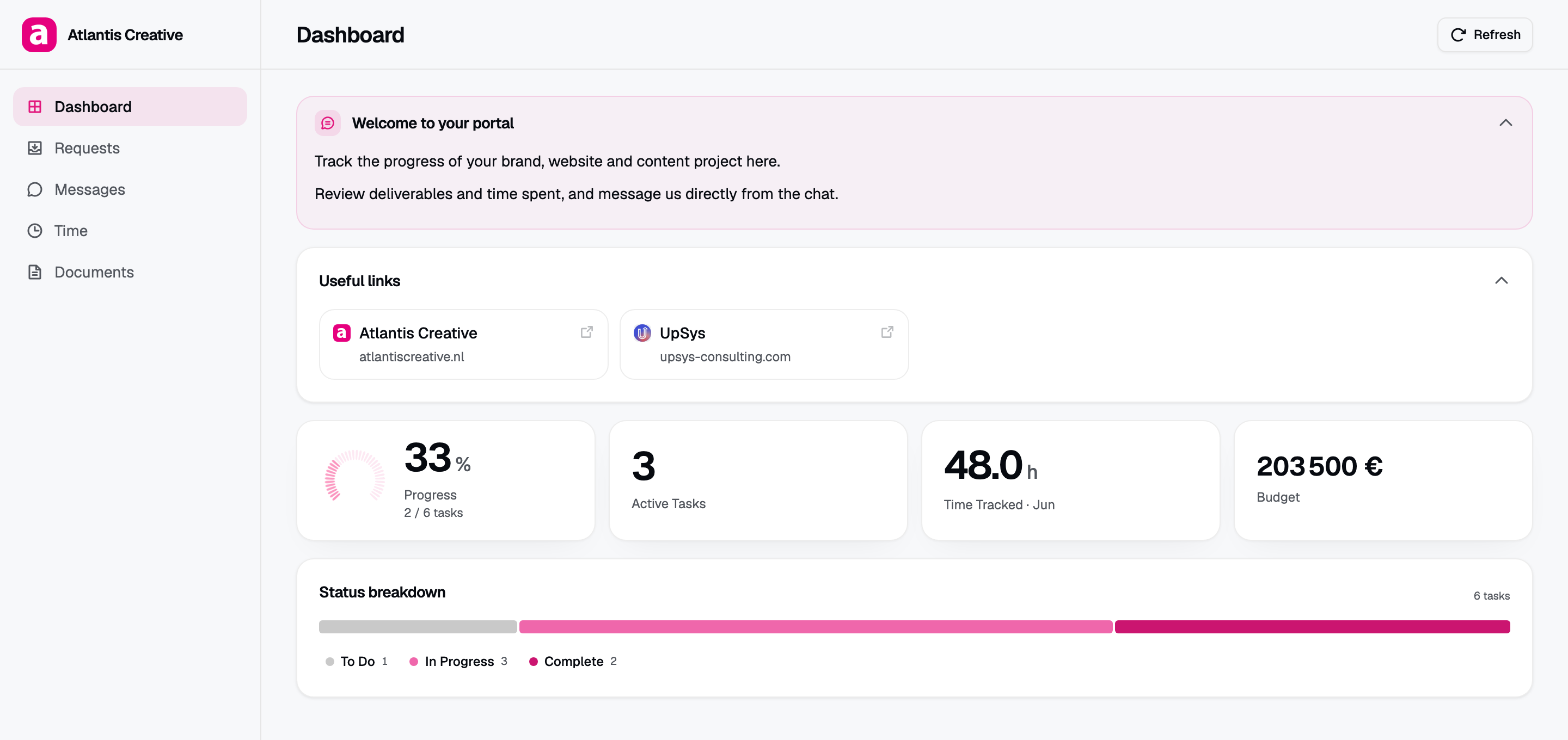
The same ClickUp data, presented as a client portal: progress, deliverables, and time, with no ClickUp account on the client side.
What a ClickUp client portal template gives you
A template in ClickUp is a saved structure you can apply again and again. For client work, a good one usually defines:
- A consistent list or folder shape. Client projects all start from the same skeleton. You stop inventing structure per account.
- Standard statuses. A shared vocabulary for what “in review” or “blocked” means across the agency.
- Custom fields. Budget, deliverable type, owner, due date, whatever your reporting depends on.
- Views. A board for the team, a list for planning, maybe a dashboard that rolls up progress.
That is real value. If your workspace is inconsistent from client to client, a template is the fastest fix, and you should apply one before you think about portals at all. Consistent structure is what makes any downstream reporting possible.
The limits of the template
The trouble starts at the moment of sharing. A template shapes your workspace. It says nothing about who is allowed to look at it, and ClickUp gives you 2 ways to let a client look, each with a cost.
Public views. You can make a view public and send the link. Anyone with that link can open it, with no password step. The page renders in ClickUp’s interface with ClickUp’s chrome, so your client sees a project management tool rather than something from your agency. You also cannot vary what is visible per person: the view is the view.
Guest access. You can invite the client into the workspace as a guest. Now they are inside ClickUp, learning an interface built for the people doing the work. Guests can encounter internal comments, adjacent lists, and task detail you never meant to surface. Guest seats also carry a cost that grows with your client count, which is exactly the wrong direction as the agency scales.
So the 3 walls are branding, access control, and scope. A template cannot move any of them, because none of them are properties of the template.
Branding: the client sees ClickUp, not you
Your agency spends real money looking credible. Then the status update arrives as a ClickUp view with ClickUp’s navigation, ClickUp’s colors, and a ClickUp login prompt if the session expired.
For an internal tool that is fine. For the artifact your client checks every week, it undercuts the impression you are paying a designer to create. A portal layer solves this by rendering the same data on a page carrying your logo, your brand color, and your typeface.
Access control: no per-client password
A public ClickUp view is protected by link secrecy alone. Links get forwarded, pasted into shared inboxes, and archived in email threads that outlive the engagement. For work under NDA, or simply for work a client would rather not have loose, that is thin.
What agencies want is a per-client password on a per-client page. Only a portal gives you that. It lets you revoke one client’s access without touching anyone else’s, and it gives you an honest answer when a client asks who can see this.
Scope: hiding what should stay internal
Even a well-built template mixes client-facing and internal work, because that is how projects run. Your estimates, your margin notes, your half-finished exploration, the task where someone wrote “chase them about the invoice” all live in the same list as the deliverables.
Filtering a view helps, but the filter is a display rule on data the viewer can otherwise reach. A portal inverts this: the client’s page is built from an explicit selection of lists, statuses, and fields, and anything not selected never reaches the browser. For a fuller comparison of the options in this category, see our guide to client portal software for agencies.
Template plus portal: the setup that holds
Most agencies that solve this end up running both layers, and each does the job it is good at.
The template layer keeps your workspace predictable. Same statuses, same fields, same folder shape per client. This is what makes the portal layer possible, because a portal can only present structure that exists.
The portal layer reads that structure and renders it for the client. With Client Glance the process is short:
- Connect ClickUp over OAuth. A read-only connection, so the portal can display work but never modify it. The token is encrypted at rest with AES-256-GCM.
- Point a portal at the list or folder your template created for that client.
- Choose the cards. Status overview, deliverables, progress, time tracking, messages. Switch off whatever should stay internal.
- Apply your branding. Logo, brand color, font.
- Set a password and send the link.
Because the portal reads live from ClickUp, your template’s structure stays the single source of truth. Move a task in ClickUp and the client’s view reflects it, with no export step in between.
When a template on its own is enough
Be fair to the simple answer: sometimes it is enough.
If you have 1 or 2 clients, if they are technical, if the work is not sensitive, and if they do not mind looking at ClickUp, a shared view costs nothing and takes a minute. Do that, and revisit the question when the client count or the sensitivity grows.
The threshold where a portal starts paying for itself is usually somewhere around 5 active clients, or the first time a client sees something in ClickUp they were not supposed to see.
Choosing between template styles
If you are still picking a template, weight these over visual polish:
- Does it standardize statuses? Reporting downstream depends on it more than anything else.
- Does it separate client-facing from internal work? A template with an explicit internal list is easier to expose safely later.
- Does it use custom fields you will actually fill in? An unfilled field is worse than no field, because it reads as missing data.
- Is it simple enough that the team will follow it? An elaborate template nobody maintains produces worse data than a plain one everybody does.
You can see how portals map to these structures in the help center, and follow what ships on the changelog.
Frequently asked questions
Is there an official ClickUp client portal template? ClickUp’s Template Center has client-facing dashboard and project templates, but none produce a portal in the strict sense. They build structure inside your workspace. The client still needs guest access or a public view, and both show the ClickUp interface.
Are free ClickUp client portal templates any good? For standardizing how you organize client work, yes. They do not solve branding, per-client passwords, or hiding internal tasks, because those depend on who can see the workspace rather than on the template.
Can I password-protect a ClickUp template? No. A public view is reachable by anyone holding the link, and guest access is governed by ClickUp seats and permissions rather than a per-client password.
Should I use a template and a portal together? Yes, and most agencies do. The template keeps the workspace consistent, and the portal reads that structure and presents it to the client with branding and a password.