ClickUp Setup for Agencies: A Structure That Survives 10 Clients
Most agency ClickUp workspaces start clean and degrade. Client 1 gets a thoughtful structure, client 6 gets whatever the account manager built that afternoon, and by client 12 nobody can answer a question across accounts because no 2 are shaped the same.
This guide covers a ClickUp setup for agencies that holds up as the roster grows, and how to make that workspace client-ready without letting clients into it.
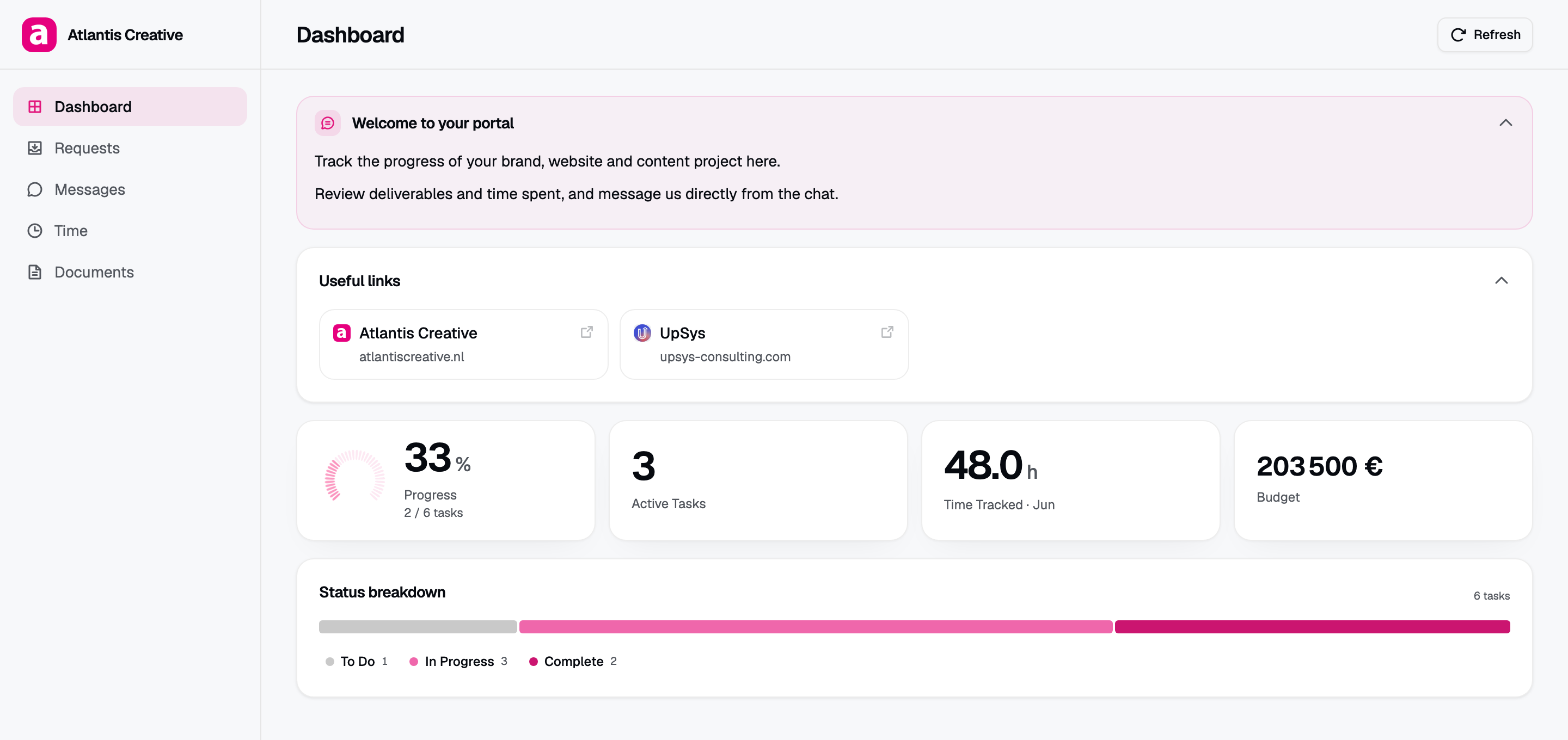
Consistent ClickUp structure feeding a client-facing page: the portal can only present the structure the workspace actually has.
Start with the separation that matters
Before spaces and folders, decide one thing: which work is client delivery and which is not.
Agency admin, new business, hiring, internal projects, and finance all belong somewhere else. Not because they are secret, but because mixing them into delivery makes the delivery space impossible to expose safely later, and it pollutes any cross-client reporting you try to build.
A workable top level:
- Delivery. Everything you are paid to produce, one folder per client.
- Business. Sales pipeline, proposals, renewals.
- Internal. Hiring, agency marketing, operations, your own website.
3 spaces, clear boundary. The delivery space is the one that has to stay disciplined.
Folder per client, list per engagement
Inside delivery, the structure that scales is boring on purpose:
Delivery (space)
├── Acme Corp (folder)
│   ├── Website Rebuild (list)
│   └── Retainer 2026 Q3 (list)
├── Northwind (folder)
│   └── Brand Refresh (list)
└── Group W (folder)
    └── Retainer 2026 Q3 (list)
Why a folder per client beats a space per client. Spaces carry their own statuses, custom fields, and settings. A space per client means maintaining that configuration once per account, and they will drift. It also breaks cross-client views, so you lose the ability to ask which deliverables are late across the whole agency.
Why a list per engagement. Retainers and projects have different rhythms. A retainer list per quarter gives you a natural boundary for reporting hours and for archiving, and a project list ends when the project does.
Statuses: fewer than you want, sharper than you think
The most common agency mistake is 12 statuses that the team applies inconsistently, which produces reporting nobody trusts.
5 to 7 is the range that works. What matters is that the set distinguishes who is holding the work:
- Backlog. Agreed but not started.
- In progress. Someone is actively on it.
- Blocked, internal. Waiting on us.
- Blocked, client. Waiting on them.
- In review. With the client for approval.
- Done.
The split between the 2 blocked states is the single highest-value distinction in agency work. It answers the question that surfaces in every difficult client conversation, and it does so from data rather than from memory. If your workspace can produce a list of everything waiting on the client, most of those conversations get easier.
Custom fields the team fills in
An empty custom field is worse than no field, because it reads as missing information rather than as an unused feature. Keep the set small:
- Deliverable type. What kind of output this is. Drives client-facing grouping.
- Client-facing. A checkbox. Marks whether this item is something the client should ever see.
- Owner. Who is accountable, distinct from who is assigned.
- Due date. Real dates, not aspirational ones.
That client-facing checkbox is worth adding even if you do not use it yet. It costs nothing now and it is what makes the workspace safe to build a client view from later.
Time tracking, if you bill on it
For retainer work, tracking time in the same place the work lives is worth the discipline. It means hours against budget is a query rather than a reconstruction at invoice time.
The rule that makes it stick: time goes on tasks, never on lists or folders. Aggregate up, never down. If the team logs time against a generic bucket, the hours exist but they cannot be attributed, and you are back to guessing which client is unprofitable.
Making the workspace client-ready
Now the part the structure was for. Once delivery is consistent, you can show clients their work without showing them ClickUp.
Your native options both have costs. Guest access puts the client inside the interface, exposes comment threads on shared tasks, and consumes seats that scale with your client count. Public views drop the login but keep ClickUp’s chrome and offer no password.
The alternative is a portal that reads from the workspace. With Client Glance:
- Connect ClickUp over OAuth. Read-only, so the portal displays work but never modifies it. The token is encrypted at rest with AES-256-GCM.
- Point a portal at the client’s folder or list. Your structure makes this a single choice rather than a filtering exercise.
- Choose the cards. Progress, deliverables, status, time, messages.
- Brand it, set a password, send the link.
This is where the earlier discipline pays. A workspace with consistent statuses and a client-facing flag can produce a clean client view in a minute. A workspace where every client is shaped differently cannot, at any price.
For the comparison in detail, see ClickUp guest access vs a client portal, and the step-by-step in how to create a ClickUp client portal.
Templates keep it from drifting
Save the structure as a template and apply it to every new client. Folder shape, list shape, statuses, custom fields.
The template is not about saving the 10 minutes of setup. It is about preventing the drift that makes cross-client reporting impossible 18 months from now. Enforce it by making template application the first step of client onboarding rather than something done when someone remembers.
See ClickUp client portal template for where templates help and where they stop.
A short migration path
If your workspace is already messy, do not restructure everything at once.
- Fix statuses first, across the delivery space. This is the change that unlocks reporting and it is the gentlest.
- Add the client-facing checkbox and backfill it on active work only. Ignore the archive.
- Rework one client folder to the target structure and run it for a month.
- Apply the template to new clients from that point, and rework existing ones at natural boundaries such as a new quarter or a new project.
You can read how portals map onto ClickUp structure in the help center, and follow what ships on the changelog.
Frequently asked questions
How should an agency structure ClickUp spaces and folders? One space for client delivery, a folder per client, a list per engagement or retainer period. Keep sales, hiring, and agency admin in separate spaces.
Should each client get their own space or their own folder? A folder inside a shared delivery space. Spaces carry their own statuses and settings, so a space per client multiplies configuration and breaks cross-client reporting.
How many statuses should an agency use in ClickUp? 5 to 7, including a split between blocked on us and blocked on the client. That distinction is the most useful one in agency work.
Can clients see the ClickUp workspace directly? Through guest access or public views, but both show the ClickUp interface and neither supports a per-client password. Most agencies give clients a branded portal that reads from the workspace instead.